
Meshy
Turn descriptions and reference images into editable 3D assets
What is Meshy?
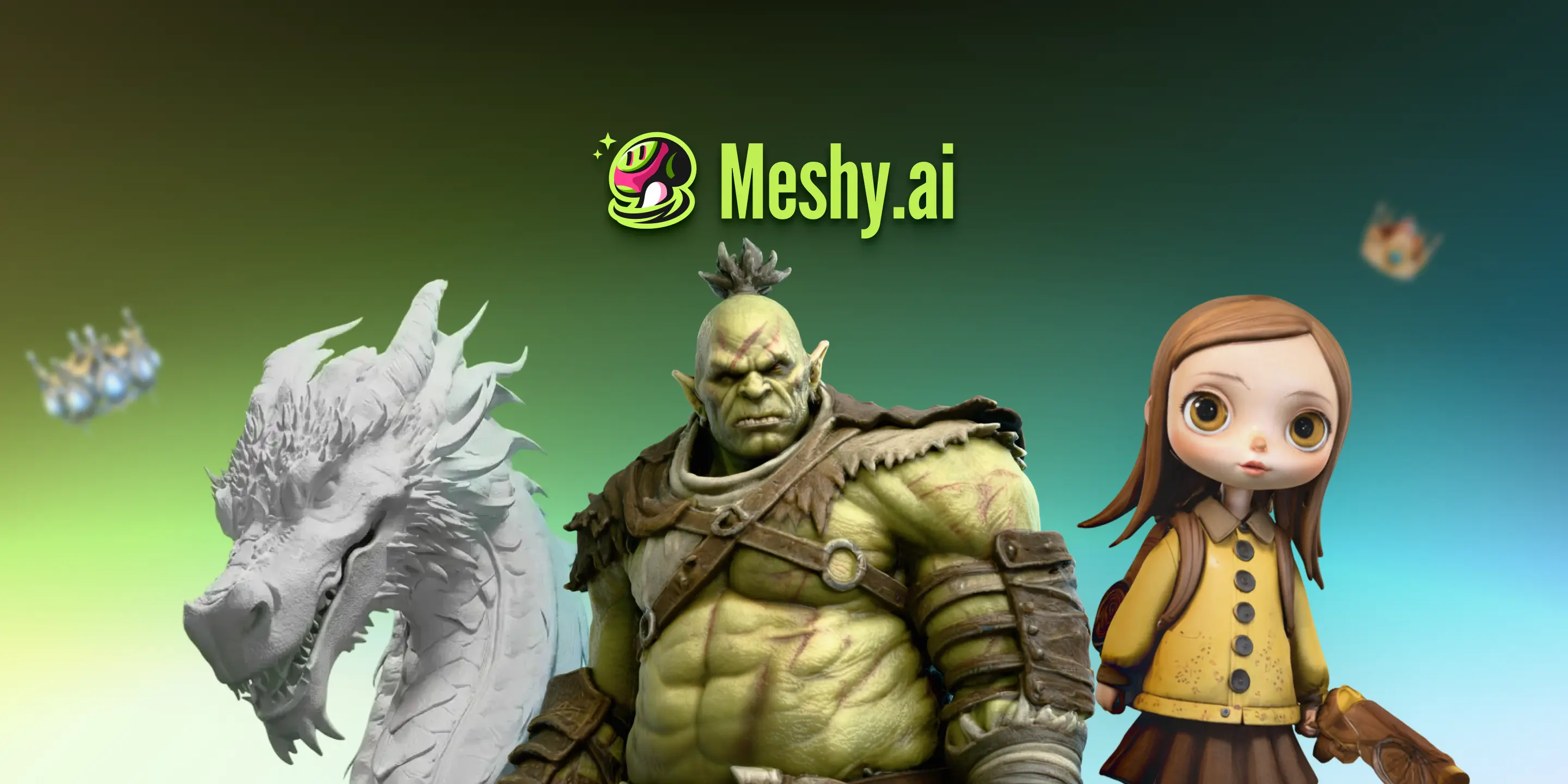
Meshy turns a visual reference or a written object concept into a 3D asset. The image route reconstructs a photo, sketch or concept illustration as an editable mesh. Text-led creation now takes place in Meshy Agent, where the object can be described and refined through conversation.
Choose the geometry for its destination
Image generation separates the model type from the engine version. Standard produces a dense surface for detail-focused work, while Smart Topology emphasizes lower polygon counts and cleaner edge flow for real-time use. Additional reference views give the model information about the object's sides and back, rather than leaving those areas represented only by the front image.
Inspect the shape before its surface
The first image-based result is an uncolored mesh. It can be rotated in the viewer to inspect the shape before texturing. A retry uses a different random seed, and Remesh can reduce the polygon count before a surface is added. This separates decisions about the object's geometry from decisions about its appearance.
Prepare individual parts for further work
Auto Split can separate components such as clothing, accessories and the body into distinct objects. Those parts can then be handled individually in another 3D tool. A finished mesh can leave the service directly, or continue through texturing before it is downloaded for the next production stage.
What can Meshy do?
- 01
Generate 3D models
Use text, reference images or a concept refined with the 3D Agent
- 02
Texture a model
Add generated surfaces to new or uploaded assets
- 03
Rig characters
Prepare skeletons and weights for movement
- 04
Apply animation
Add motion presets to characters
- 05
Export 3D files
Download formats including GLB, FBX, OBJ and STL
How do I get started with Meshy?
- 1
Start Image to 3D
Open meshy.ai/workspace, select Model and upload a reference image
- 2
Configure the mesh
Choose the model type, engine version and other generation settings, then click Generate
- 3
Inspect and refine
Rotate the white mesh, retry if needed and use Remesh before texturing when appropriate
- 4
Finish the asset
Download the mesh directly or use Texture before exporting
What does Meshy work with?
- Blender
- Godot
- Unity
- PNG
- JPEG
- WEBP
- FBX
- OBJ
- STL
- GLTF
- GLB
- FBX
- OBJ
- USDZ
- GLB
- STL
- BLEND
- 3MF
- DMF
Who is Meshy for?
- Game artists
Prepare props and characters for prototypes
- Product concept designers
Turn sketches into 3D review assets
- 3D-print makers
Create objects to prepare in a slicer
How much does Meshy cost?
- Free plan · 100 credits per month for up to 10 assets.
What are Meshy's limitations?
Image uploads
Image to 3D accepts source images up to 20 MB
Model uploads
Each file must be no larger than 100 MB; upload one model at a time
Multi-View
Additional reference angles are supported only with Meshy 7
Keep Original Texture and UV
The merged model must contain one material and one UV map, with no overlapping UV islands
Meshy FAQ
Is API access included on Free?
No. API access is available on Pro and higher plans.
More tools like Meshy
 Spline
Build interactive 3D scenes for websites and applications
 Looka
Create a logo and matching brand material for a new business
 Figma
Design interfaces and explore working prototypes with product collaborators
 Napkin AI
Turn written explanations into editable diagrams and presentation visuals
 Uizard
Turn interface sketches and descriptions into clickable prototypes
 Kittl
Design merchandise artwork, product mockups and related brand assets