
Topaz Photo
Restore detail and prepare larger photographs for delivery or print
What is Topaz Photo?
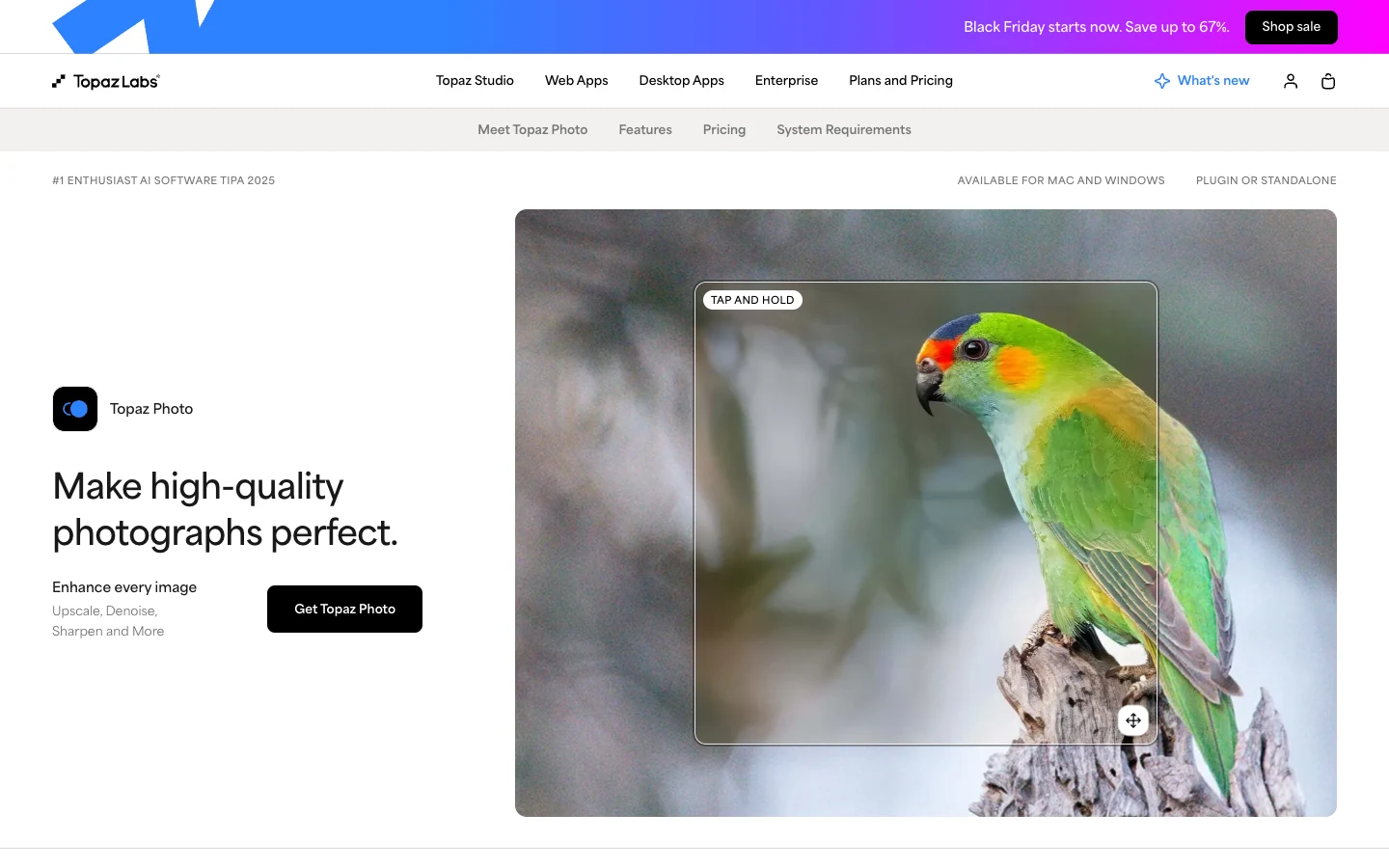
Topaz Photo is an AI photo-enhancement application for photographers repairing and preparing images. It reduces noise and blur, restores faces and damaged areas, and enlarges photographs for a bigger crop or print. The desktop editor works directly with image files or through supported photo applications, with Autopilot proposing an initial set of adjustments.
Recover a noisy or soft photograph
Open an image directly or send it from a supported photo application. Autopilot proposes adjustments, with manual control over the processing that follows. Noise reduction addresses grain, sharpening targets blur, and face recovery concentrates on facial detail. Compare the result with the source and refine the affected area so the treatment serves the photograph.
Repair and prepare the image
Older pictures can need different work from a recent camera file. Dust, scratches and blemishes can be treated with restoration and brush tools, while lighting and color adjustments refine the overall appearance. Upscaling increases the dimensions when the photograph needs a larger crop or print, bringing repair and delivery preparation into the same editing task.
Finish a photograph or a batch
Several images can be processed in a batch, with each result available for inspection. In standalone use, save the processed files for the next production stage. In a plugin session, return the enhanced photograph to the host editor to continue the broader edit there.
What can Topaz Photo do?
- 01
Reduce image noise
Clean grain in processed photographs and RAW files
- 02
Recover focus and faces
Address blur and refine facial detail
- 03
Rebalance light and color
Adjust exposure, shadows, highlights and overall appearance
- 04
Repair damaged areas
Remove dust, scratches and blemishes with automatic or brush tools
- 05
Upscale the photograph
Increase dimensions for printing or a larger crop
How do I get started with Topaz Photo?
- 1
Open photographs
Launch Topaz Photo and import images with Browse
- 2
Choose the starting adjustments
Switch Autopilot on for automatic enhancement or off for manual selection
- 3
Refine the result
Change enhancement settings and adjust the affected region where selection controls are available
- 4
Compare the image
Inspect the original and processed versions with a split or side-by-side preview
- 5
Save the files
Open Export Image, set the name, format and destination, then select Save
What does Topaz Photo work with?
- Lightroom Classic
- Photoshop
- Photoshop Elements
- Capture One
- Apple Photos
- Affinity Photo
- JPEG
- PNG
- TIFF
- DNG
Who is Topaz Photo for?
- Photo finishers
Prepare low-light or soft-focus shots for delivery
- Photo-archive restorers
Repair scanned pictures and prepare larger copies
How much does Topaz Photo cost?
- No free plan
- Commercial use limited to organizations with annual revenue below USD 1 million
What are Topaz Photo's limitations?
DNG output
Non-RAW source images are saved as TIFF when DNG is selected
Apple Photos handoff
The plugin returns JPG regardless of the original image format
Topaz Photo FAQ
Can Topaz Photo run locally?
Yes. Local rendering processes images on the computer; cloud rendering is another available option.
More tools like Topaz Photo
 Pixelcut
Turn product photos into listing imagery and campaign media
 remove.bg
Cut photo subjects out and prepare new backgrounds in bulk
 TatSketchFeatured
Turn text prompts into custom tattoo concepts
 Recraft
Create illustrations and editable vector assets for design projects
 Krea
Explore image and video ideas on a live canvas
 Ideogram
Create illustrated designs with editable lettering for posters and campaigns