
What is Kapwing?
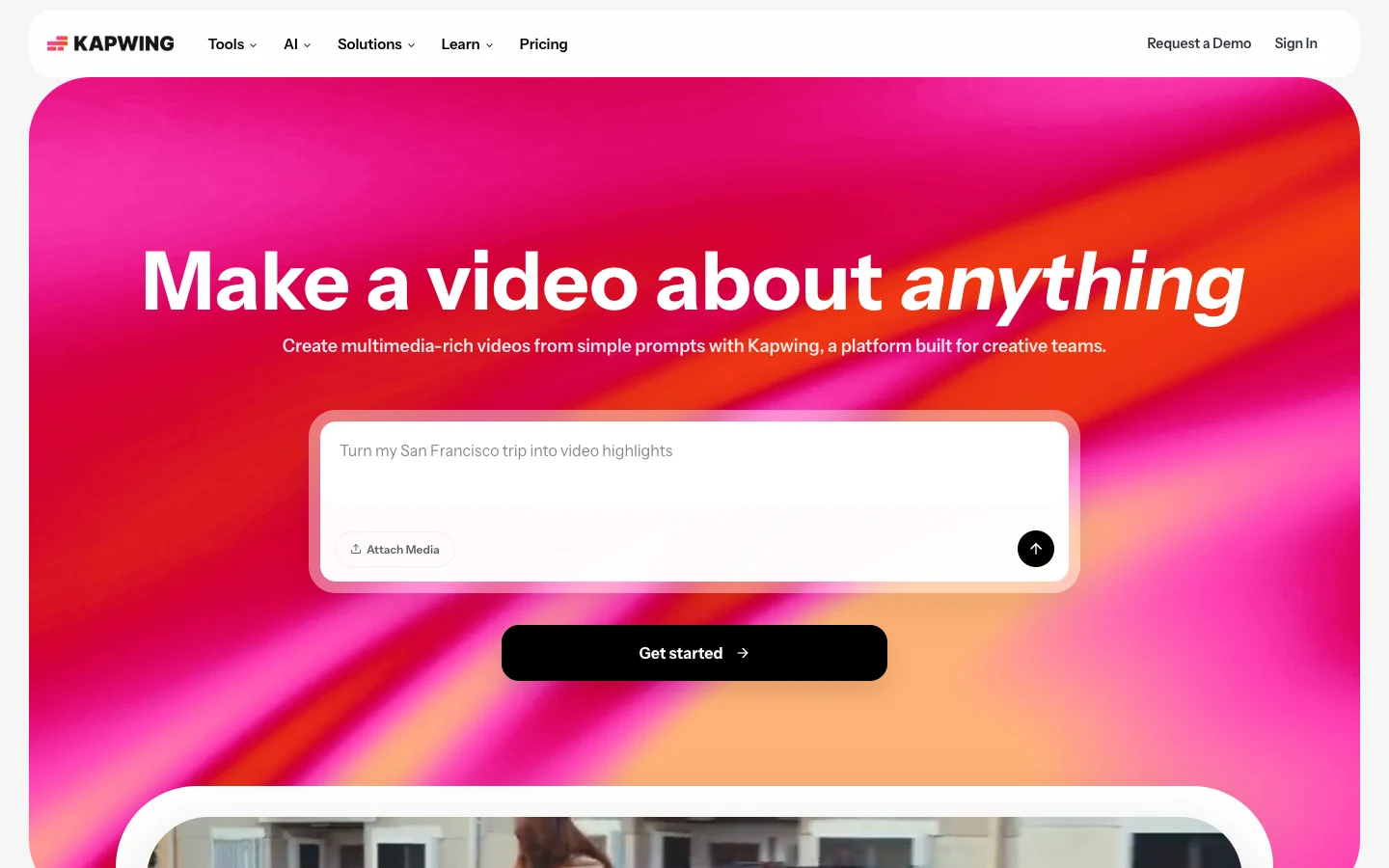
Kapwing is a browser video editor for creators and teams making captioned, localized and repurposed content. It combines a layered timeline with AI-generated drafts, transcript-based cuts and automatic subtitles. A project can start with uploaded media, a link or a prompt and remain editable as its picture, speech and timing change.
Make a first cut from footage or an idea
Uploaded media and video links provide material for a conventional edit. A prompt offers another route, generating a draft with picture, speech, music and captions on separate layers. Refine the script and sequence, then use the timeline to combine clips and supporting visuals into the story you want to tell.
Tighten the dialogue and localize it
Transcript-based editing removes spoken passages by changing their text, while Smart Cut finds silent sections to trim. Automatic subtitles make the dialogue readable, and translation, voiceovers and dubbing adapt the video for another audience. The text and timing remain part of the editable project, so a correction can be made before the final version is rendered.
Repurpose the video with your team
A longer recording can become short clips with reframing that follows the speaker. Adjust the canvas and overlays for the new destination, then review the result with collaborators in the browser. Teams can refine the same layered project and download a completed version once the picture, sound and captions are ready.
What can Kapwing do?
- 01
Generate layered video drafts
Create visuals, timing, speech, music and captions from a prompt
- 02
Edit on the timeline
Trim, combine tracks and add overlays
- 03
Cut through the transcript
Remove spoken passages by editing their text
- 04
Remove silent sections
Use Smart Cut to tighten the recording
- 05
Localize spoken video
Generate subtitles, translated captions, voiceovers and dubbing
- 06
Reframe short clips
Follow speakers while adapting a longer recording for another format
How do I get started with Kapwing?
- 1
Start a project
Sign in to Kapwing and choose Create a Project
- 2
Bring in media
Use Click to Upload, drag a local file into Studio or paste a media URL
- 3
Arrange the sequence
Trim the clip with its time sliders and split it where separate sections are needed
- 4
Add an annotation
Open Text, choose Add Text and set its appearance and timing
- 5
Export the edit
Select Export and choose the intended file type; select GIF for an animated image
What does Kapwing work with?
- MP4
- MOV
- WEBM
- MP3
- WAV
- JPEG
- PNG
- GIF
- WEBP
- SRT
- TTF
- OTF
- MP4
- GIF
- MP3
Who is Kapwing for?
- Campaign video editors
Make full videos and shorter channel versions
- Training localization producers
Adapt tutorials into captioned and dubbed lessons
How much does Kapwing cost?
- Free plan · 10 credits and watermarked 720p exports for videos up to 4 minutes.
- or $16/member/mo billed yearlySave 33%
What are Kapwing's limitations?
Custom fonts
Only projects in upgraded workspaces can use uploaded fonts
Font upload packaging
Upload each font separately; ZIP archives containing multiple fonts are not accepted
Audio export
MP3 is offered only when the project contains sound
Kapwing FAQ
Can I export subtitles separately?
Yes. Subtitle downloads are available as SRT or VTT files.
Are free projects visible only to me?
No. Free projects are unlisted, so someone with a project link can view them.
More tools like Kapwing
 CapCut
Edit social videos with captions, generated media and voice tools
 invideo
Direct video edits through conversation while retaining timeline control
 AI Rap Duo
Turn two photos into a rap duo video.
 Krea
Explore image and video ideas on a live canvas
 Synthesia
Produce presenter-led training and onboarding videos from source material
 Pika
Generate, revise and score short video scenes
 HeyGen
Make presenter videos for lessons, product updates and localization
 D-ID
Create digital presenters for scripted videos and live conversations